Guides / Connect your library

Mac · Windows · NAS · FireStream

Your library.
Connected.

Keep your videos on your computer. Open them in your headset. Start with the kind of sharing you use.

New to this? Start with SMB if your videos are in ordinary shared folders.

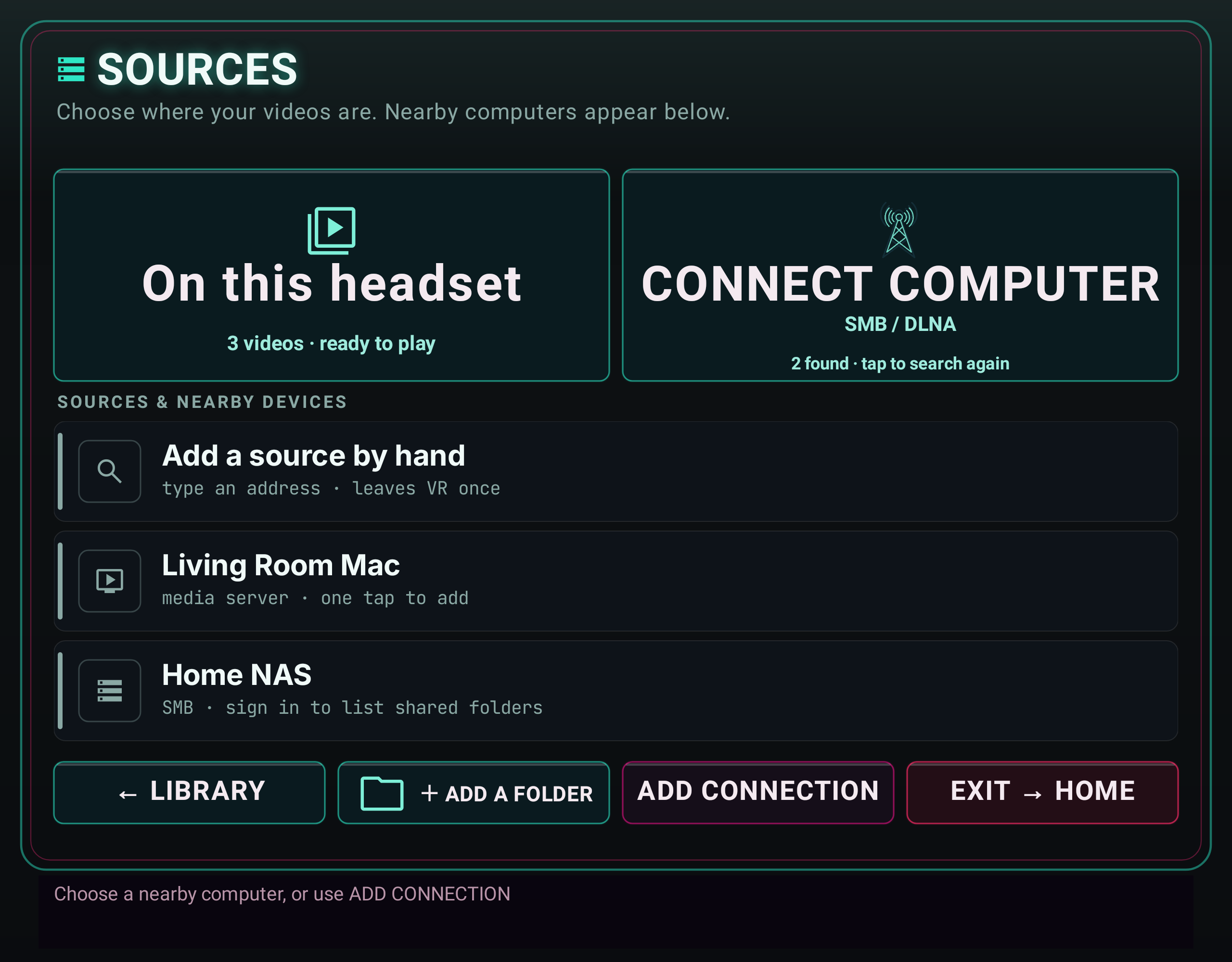
Updated Finally Sources screen with Connect Computer, Living Room Mac and Home NAS
One place for your connections.Updated interface preview

01 Put both devices on the same home network.

02 Keep your computer or NAS awake.

03 Turn on folder sharing or your media server.

01In your headset

Start in
SOURCES.

Open the Lobby’s Library panel and choose SOURCES. Finally looks for computers and media servers on your local network.

Choose your device when it appears. CONNECT COMPUTER checks for nearby computers and media servers. To enter an address yourself, choose ADD CONNECTION, then Add manually in the setup window.

A computer can appear twice if it shares both SMB folders and a DLNA library. Choose the connection type you set up below.

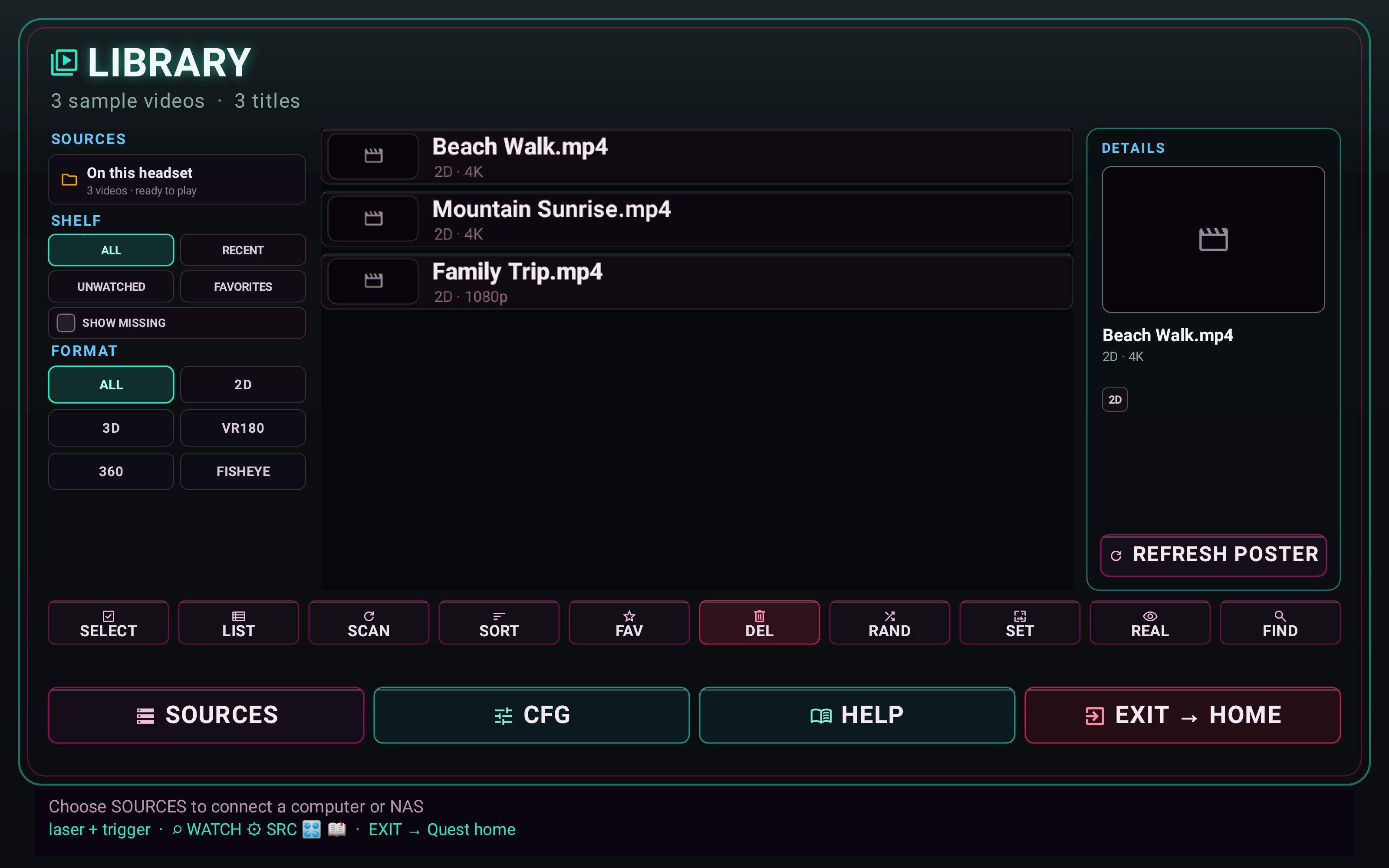
Finally Library panel with the SOURCES button and three neutral sample video titles
Open SOURCES from the Library panel.View full resolution ↗
02Choose your connection

One library.
Two ways to reach it.

SMB opens shared folders with your computer or NAS login. DLNA opens the library published by a media server such as FireStream.

Shared folders · SMB

Mac, Windows or NAS

Enable SMB sharing on the computer or NAS first, then connect from Finally.

Set up sharing on a Mac
  1. Open System Settings → General → Sharing. Open the information button beside File Sharing and turn it on.
  2. Add your video folder under Shared Folders. Give the account you’ll use at least Read Only access.
  3. Open Options. Enable Share files and folders using SMB and enable your account under Windows File Sharing.
  4. Note the Mac’s SMB address shown below File Sharing: On.

See Apple’s SMB setup instructions.

Set up Windows or a NAS

Share the video folder over SMB and give your chosen user permission to read it. Note the server address and that user’s login.

Follow the Windows SMB guide or Synology guide for the server-side steps.

  1. In SOURCES, select the computer or NAS with the SMB label. If it’s missing, choose ADD CONNECTIONAdd manuallyNAS / SMB share.
  2. Check the server’s address (already filled for a discovered device), then enter your username and password. Use the account that has access to your shared folder.
  3. Choose Browse shared folders, open your share or a subfolder, and choose Select this folder. Choose Add & browse to save it and open the folder.
Address
home-nas.local — example only; enter your server
Username
The Mac, Windows or NAS account with folder access
Password
That account’s password

Leave Advanced settings closed unless you already know you need a specific share, subfolder, domain or port.
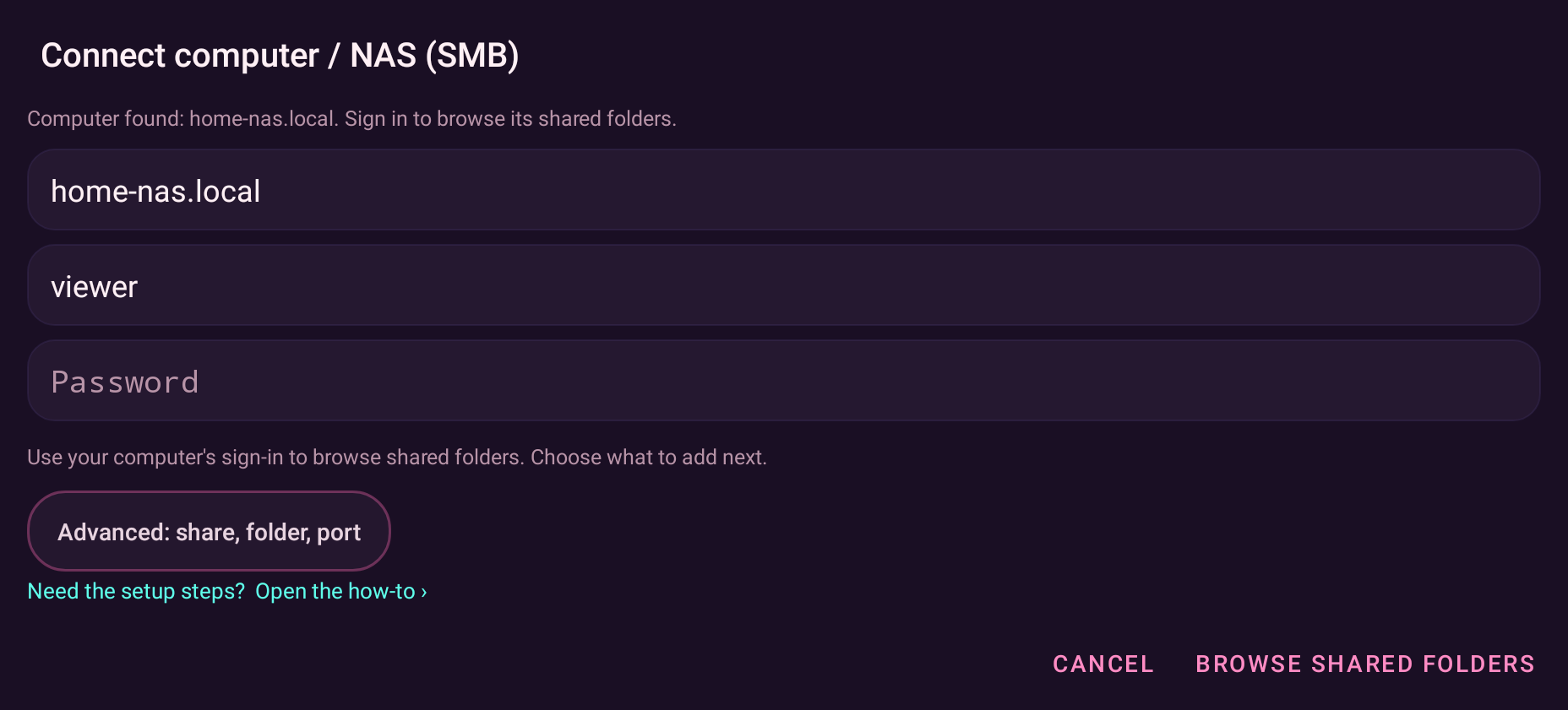
Finally SMB connection form with a fictional home-nas.local server, viewer username and an empty password
Your server address and login. Advanced fields stay out of the way.View full resolution ↗

Media servers · DLNA

FireStream on a Mac

FireStream publishes a media library. In Finally, look for its DLNA entry.

Prepare FireStream
  1. Open FireStream on your Mac and make sure the server is running.
  2. Add your video folder under Content → Folders.
  3. If FireStream restricts access by device, open its Devices tab and allow your headset.

The developer describes these controls in the FireStream listing. Names can vary by version.

  1. Put the Mac and headset on the same local network. The Mac can use Ethernet while the headset uses Wi-Fi.
  2. Open SOURCES and choose the media-server entry for your Mac. It may be described as a media server or DLNA. The name comes from your server; it may be different from the example here.
  3. Open the video collection, choose a folder and select a video. If access is denied, check the headset’s permission in FireStream.

A DLNA connection usually doesn’t ask for an SMB username or password. If you see that form, you selected the SMB route.

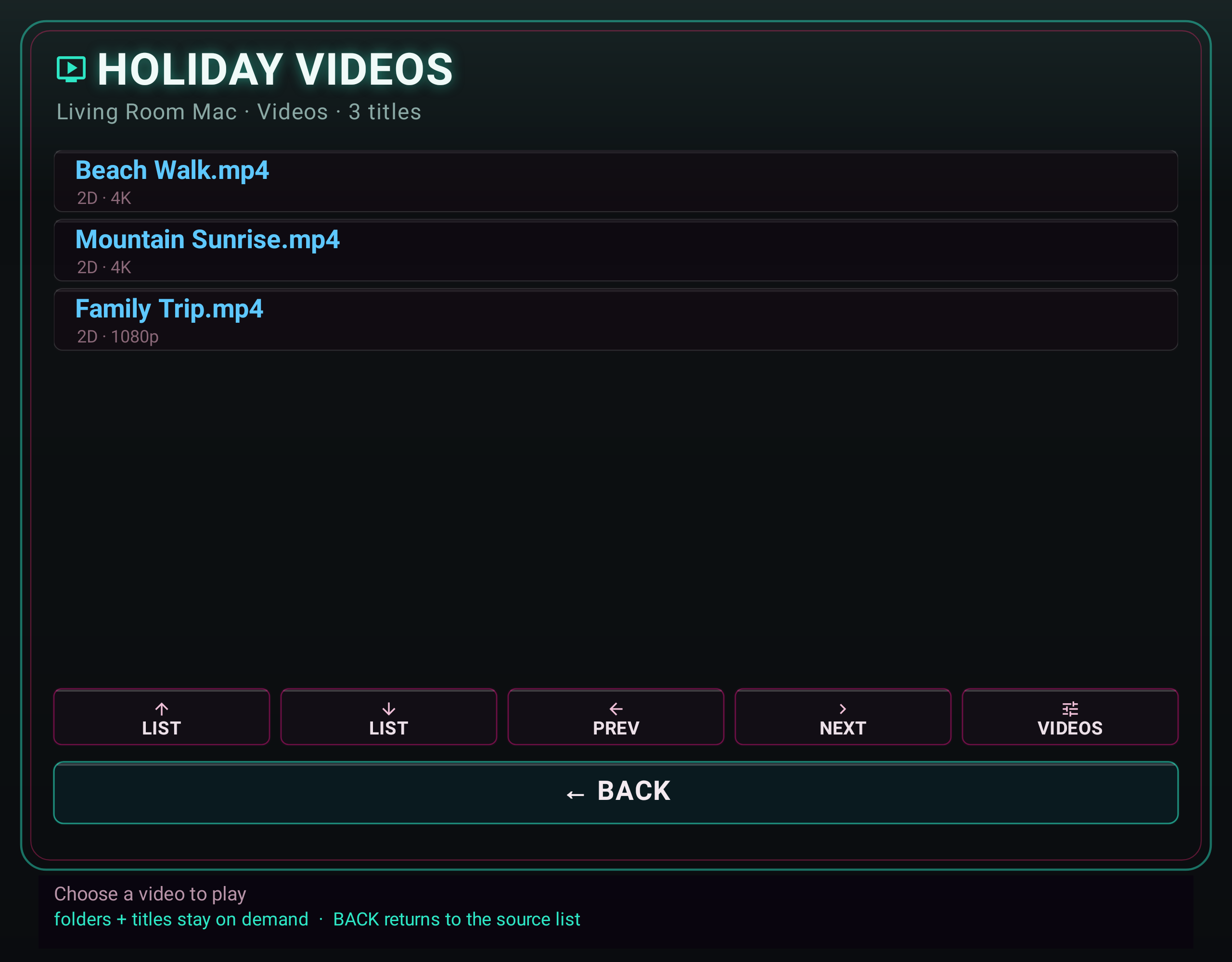
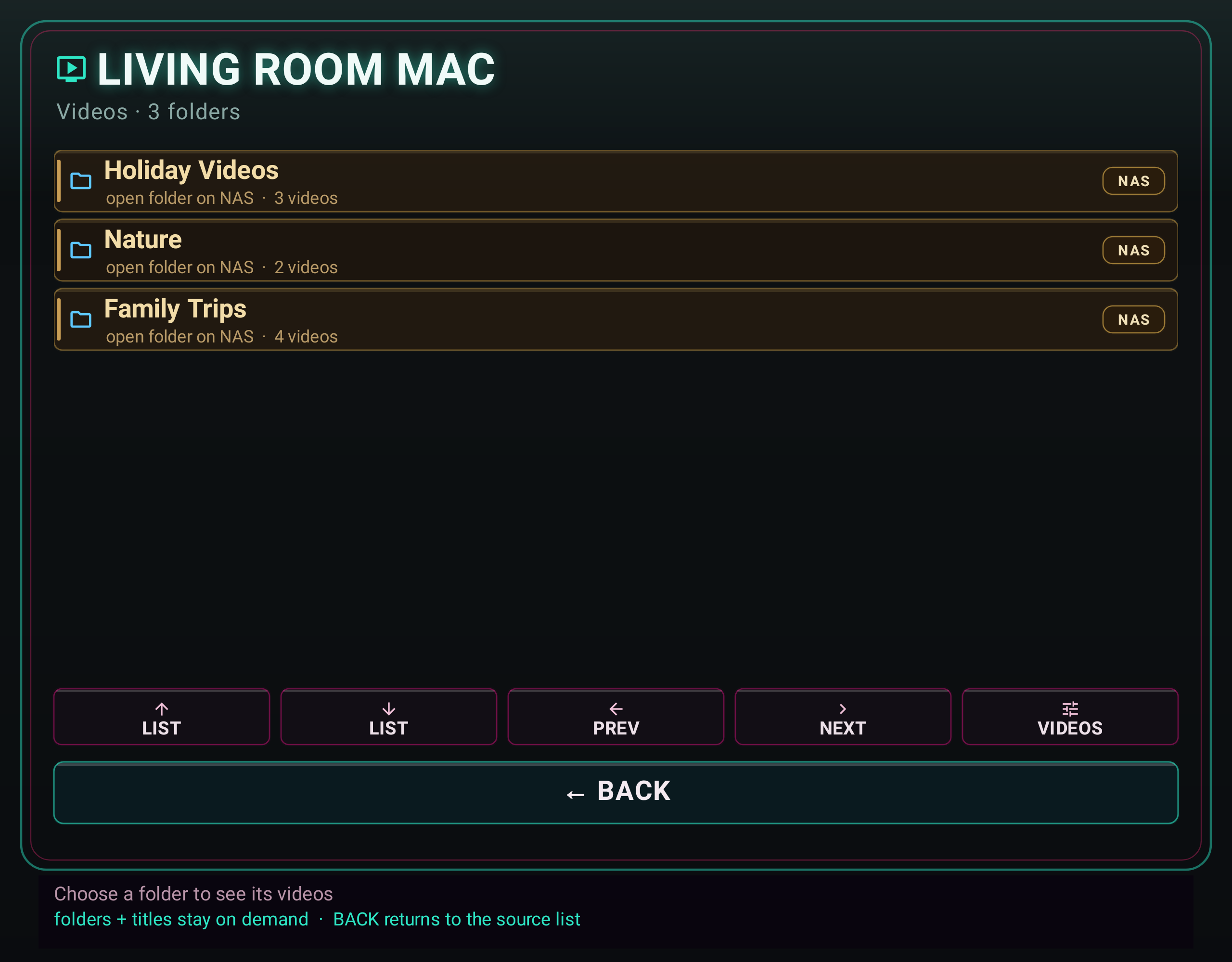
Finally DLNA folder browser with fictional Holiday Videos, Nature and Family folders
Browse the folders your media server publishes.View full resolution ↗
03Make yourself comfortable

Pick a video.
Press play.

Open a familiar, short video first. Once it plays, try the rest of your library.

For a normal video, use Flat. For stereo or immersive video, choose the matching layout in the player.

Set up VR180, 360° or 3D video →

Illustrations show a sample library; they don’t demonstrate a live server connection.

Finally sample video browser showing Beach Walk, Mountain Sunrise and Family Trip
Choose a video from your connected library.View full resolution ↗

Get unstuck

Can’t see it?
Start here.

Discovery, sign-in and playback are different steps. Match the problem you see to the check that helps.

Mac checks follow Apple’s connection guidance and firewall guidance.

My computer or server never appears.
  • Keep the computer awake and confirm folder sharing or the media server is running.
  • Use the same home network. Guest Wi-Fi and router device-isolation settings can keep devices apart.
  • If a VPN is active, check that it allows local-network access.
  • Allow the sharing service through the computer’s firewall.
  • For SMB, try ADD CONNECTION → Add manually → NAS / SMB share with the server’s current local address.
FireStream appears, but won’t open.

Open FireStream’s Devices tab and check that the headset is allowed. Confirm the video folder is shared under Content → Folders, then try again.

If Finally reports permission denied, address the server permission first. If it times out, check the Mac is awake and FireStream is reachable through its firewall.

SMB rejects my username or password.

Use the account on the computer or NAS that owns the share permissions. On a Mac, enable that account for SMB in File Sharing → Options. On Windows, use the account password; a Windows Hello PIN is not the share password.

If your server requires a domain, enter it under Advanced settings. Start by confirming the same login can open the shared folder from another computer.

I’m connected, but the folder is empty.

Confirm the account can read the folder and that the folder actually contains supported media. For DLNA, the server must publish and index those files. Cloud placeholders and an unplugged external drive won’t provide playable files.

In FireStream, add the folder or external drive under Content → Folders. If needed, stop the server, quit FireStream and reopen it.

It plays, but buffers or stutters.

Try a lower-bitrate file to separate connection trouble from a demanding video. Connect the computer or NAS by Ethernet where possible, keep the headset near the Wi-Fi access point, and use a strong 5 or 6 GHz connection when supported.

Resolution alone doesn’t determine streaming load. Bitrate, codec and headset decoding limits matter too. Read the high-resolution playback guide.

The same computer appears as SMB and DLNA.

That can be normal. SMB exposes shared folders; DLNA exposes a media server’s catalog. Pick the route you prepared. You don’t need to configure both.

I still can’t connect. What should I report?

Send your headset model, Finally version, server app and version, whether you chose SMB or DLNA, and the exact error message to Finally support. Say whether the device is missing, sign-in fails or browsing fails.

Leave out passwords and private filenames. Crop any screenshot to the error or connection controls.

Prefer to start with a local file?

Copy one video to your headset and open it directly.

Open your first local video