 Finally
Stereo photos · Quest + Galaxy XR
Your 3D photos.
Beyond the flat screen.
For an ordinary side-by-side 3D photograph, start with Flat + SBS. Then match the packing and eye order. VR180 is a projection; SBS is how the two eyes are packed into a file.
Open your first SBS photo.
- Start with a photo you own. Use a JPG or PNG containing the left and right views side by side. Keep a copy of the original.
- Add it to Finally. Put it in a folder accessible to the headset, then use the library's Add files route through Android's picker. Open the photo from the Lobby.
- Choose Flat and SBS. Use VR180 only if the photo actually covers a 180-degree field of view. For an over/under file, choose OU instead of SBS.
- Match the packing. Use FULL if each eye has its original width. Use HALF if each eye has been squeezed horizontally to fit the combined frame.
- Check depth and save. If depth appears reversed, try the eye-order control. If prompted, choose OVERRIDE to keep the chosen layout for that title. Return to AUTO if you want detection to decide again.
Match the setting to the photo.
| File layout | Starting point | Check |
|---|---|---|
| Two full-width eyes side by side | Flat + FULL SBS | Shapes look natural, with comfortable depth. |
| Two squeezed eyes side by side | Flat + HALF SBS | Faces and circles regain their intended shape. |
| Two eyes stacked vertically | Flat + OU | Choose full or half packing to match the source. |
| An equirectangular stereo 180-degree photo | VR180 + its stereo layout | The scene wraps correctly. A fisheye source needs its matching lens profile. |
Frame dimensions are clues, not proof of the layout. Check the export settings from your camera or editor if the result still looks wrong.
Make it a place to look around.
Choose a virtual room or passthrough, adjust the picture's placement, and move to the next photo with the visible PREV / NEXT controls.
The Quest 1.0.28 update improves single-eye SBS previews and keeps the selected background visible during photo loading. Check your installed version; Galaxy store updates can follow a different schedule. These improvements do not promise zero loading time or cover every source provider.
For timed viewing, the photo controls include START SLIDESHOW, PHOTO TIME and TRANSITION. See the photo reference for more controls.
Actual Quest 1.0.28 captures
Your photos, at your pace.
Start with the everyday controls. Open PRO when you want more options in view.
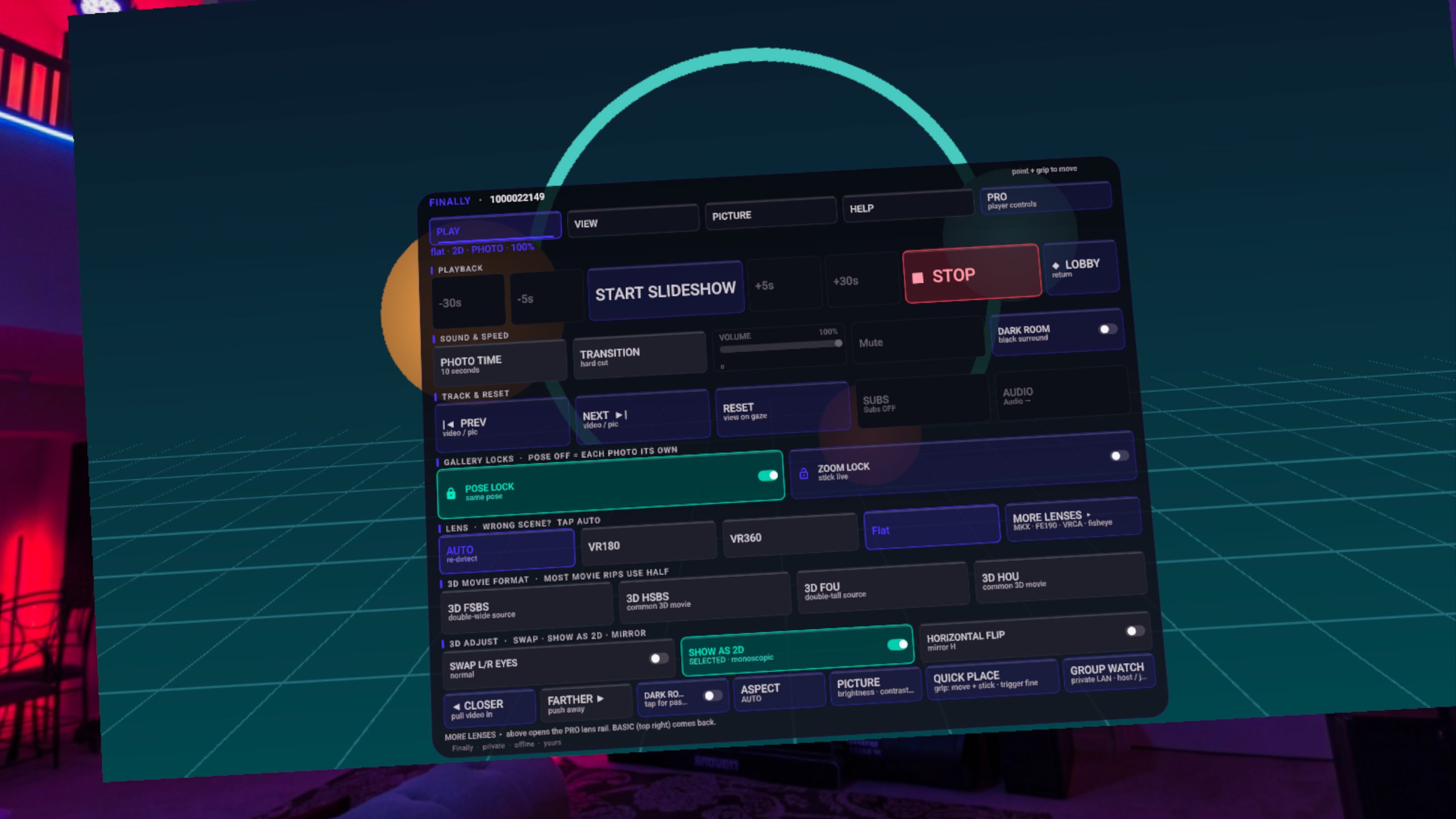
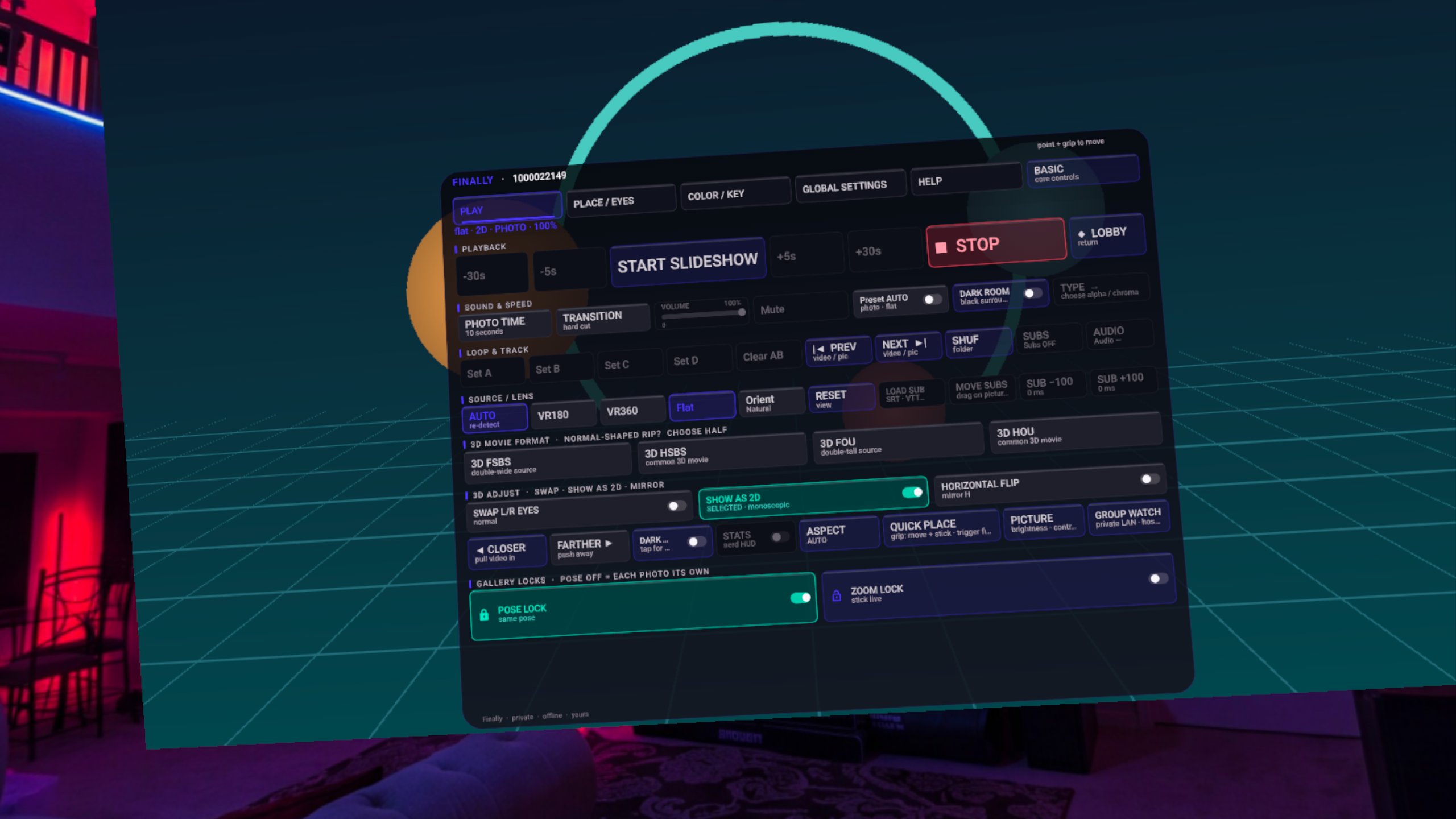
Both screenshots show a flat 2D demo photo in the bundled Ash Airfoil Loft virtual room. They illustrate the controls; they are not SBS-depth, passthrough or photo-transition demonstrations.
A useful report keeps your photos private.
If a photo looks wrong, send the headset model, app version, dimensions, file type and whether you selected FULL or HALF SBS. A synthetic example is useful. You do not need to send personal photos or your full library.