Your computer or NAS
Keep the headset and server on the same reachable home network. Use an SMB account with read access, select one folder, and test one familiar file before indexing a large library.
Follow the SMB steps → Finally
Samsung Galaxy XR
Finally plays local videos and photos, with SMB access to your computer or NAS. Start with one local file, then bring in the rest of your collection.
Use the account on your Galaxy XR. Google Play decides compatibility and the version available to that device.
If Play shows the app as unavailable, check the account and compatible-device list. An install button in a browser does not guarantee eligibility for every account or region. Contact support with the message you see, without sharing account credentials.
The shared interface brings local files and network sources together. This illustration previews the simplified Sources layout; it is not a Galaxy XR device capture. Store versions can differ.
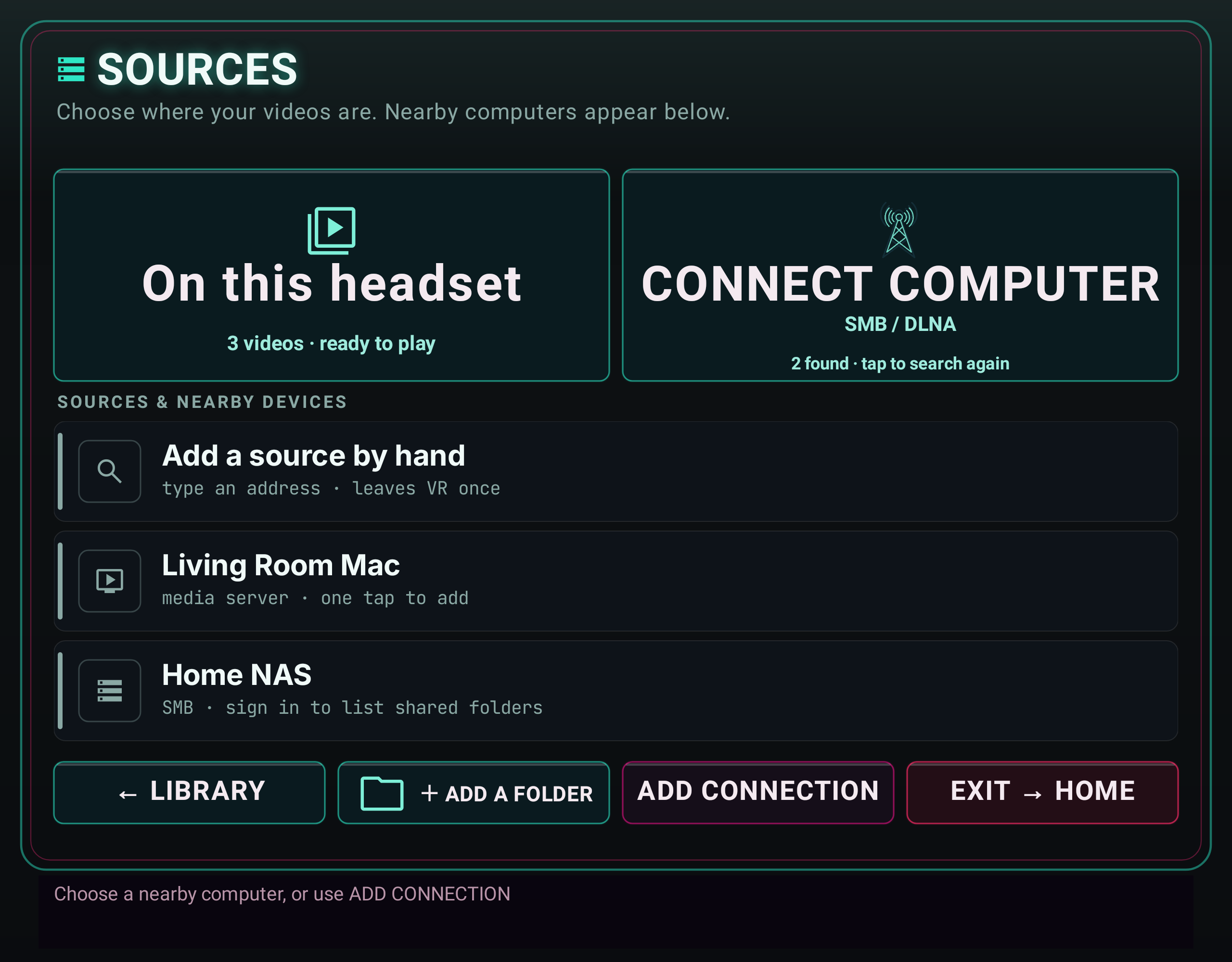
Keep the headset and server on the same reachable home network. Use an SMB account with read access, select one folder, and test one familiar file before indexing a large library.
Follow the SMB steps →Bring in side-by-side photos and choose Flat + SBS. Match FULL or HALF packing to your file, then check eye order.
Read the SBS photo guide →| What you see | What to check |
|---|---|
| Two pictures side by side | For an SBS file, turn SBS on. Keep Flat for a conventional 3D photo or movie. |
| People look squeezed or stretched | Check FULL versus HALF packing and the source aspect ratio. Layout guide. |
| The picker cannot find the file | Check that the transfer completed and that the file is stored on the headset or an accessible provider. Grant that folder access. |
| Network playback stalls | Compare the same file locally, then check Wi-Fi, server access and bitrate. A local pass does not prove the network route. |
Source frame rate and display refresh are different. A Quest 120 Hz result does not establish the same behavior on Galaxy XR. Store updates may arrive at different times; check the version in the Lobby when reporting an issue.